Getting a black screen? Try these steps.
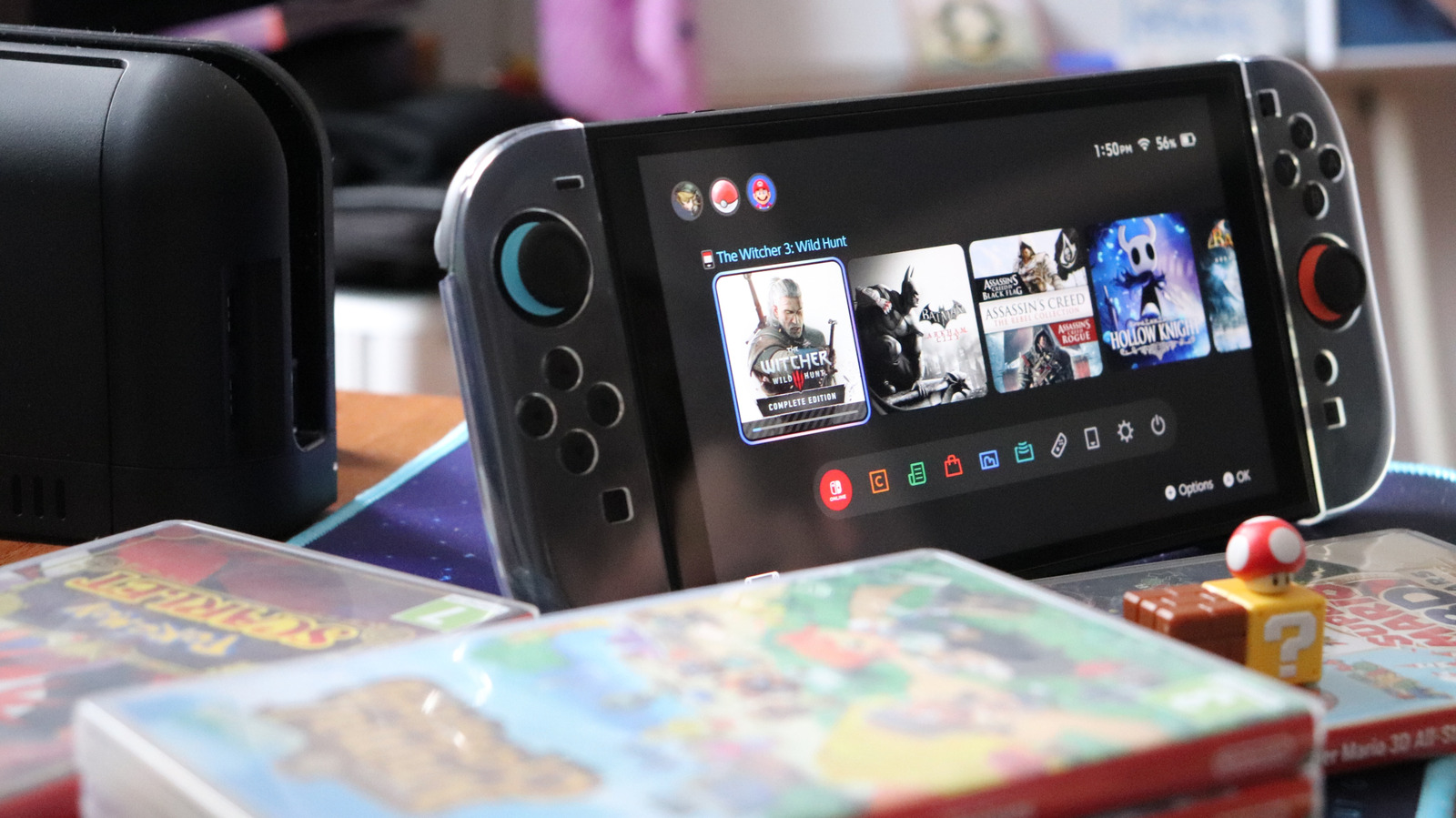
laur2321/Shutterstock Add Engadget on Google: Preferred Source Google Discover One of the best things about the Nintendo Switch is the ability to play on its built-in screen for on-the-go gaming and then plug into a bigger screen at home for a more cinematic experience.
But getting the Switch 2 to play nice with a TV isn't always foolproof, and there are some compatibility-related snags you can run into. If you encounter a black TV screen or an unresponsive console, there are a few key things you can try yourself before pinging Nintendo support.
Nintendo Nintendo recommends powering off your TV and disconnecting all cables from the Switch 2 dock to start the troubleshooting process. That means fully disconnecting the AC adapter from the dock and the wall outlet, removing the handheld from the dock and keeping everything unplugged for about 30 seconds.
The Switch 2 dock has three ports on the back behind its removable panel. The top port is for AC power. After you've unplugged everything, you can plug the AC adapter back into the dock and then into the wall socket. Make sure the handheld screen faces the front of the dock and is slotted in fully.
It might seem obvious, but it's important to check that your dock is fully plugged in and receiving power via its AC adapter to establish a TV connection. Split cables can cause power issues, so check for any fraying or visible damage.
If the cables look good, ensure that the USB plug side of the AC adapter is fully seated in the port and plug the other end of the power supply into the wall. A dead wall outlet won't be able to charge your handheld or connect to an external display.
But if you suspect your wall outlet could be the issue, check to see if your outlet is delivering power by attempting to charge another device using a different charger in that same socket.
If your Switch 2 isn't using the Nintendo AC adapter that came with the device, ensure any third-party AC adapter meets the console's power needs. The Switch 2 requires more power than the original Nintendo Switch. It needs an adapter delivering a minimum of 54W to support a continuous TV connection. Nintendo sells Switch 2 accessories , including compatible AC adapters for $35 each on its official website, in case any of your components are missing or broken.
Mulad Images/Shutterstock Check your AC adapter's compatibility and ensure it can charge your handheld, and then move on to troubleshooting the HDMI connection with your TV.
Plug one end of an Ultra High Speed (UHS) dual-end HDMI cable into the HDMI-out port on your Nintendo Switch 2's dock. The Switch 2 comes with a UHS HDMI cable, which supports 48Gbps bandwidth and HDMI 2.1 connections. Third-party cables can also work if they support UHS. You won't be able to use a lower-speed HDMI cable or the cable that came with a first-generation Nintendo Switch, unfortunately.
Plug the other end of your UHS HDMI cable into an HDMI-in port on your TV. It's best to use an HDMI 2.1 port, as it enables up to 8K resolution at a 60Hz refresh rate (or 4K at 120Hz) compared to the HDMI 1.0 ports. While UHS HDMI cables are technically backward-compatible with HDMI 1.0 ports, the port will limit the output quality, and 4K resolution and high refresh rates won't be possible. However, you'd have to have a pretty old device for it to have HDMI 1.0. The 2.0 specification (which supports 4K) was released in 2013.
Your TV model may not have its HD…