
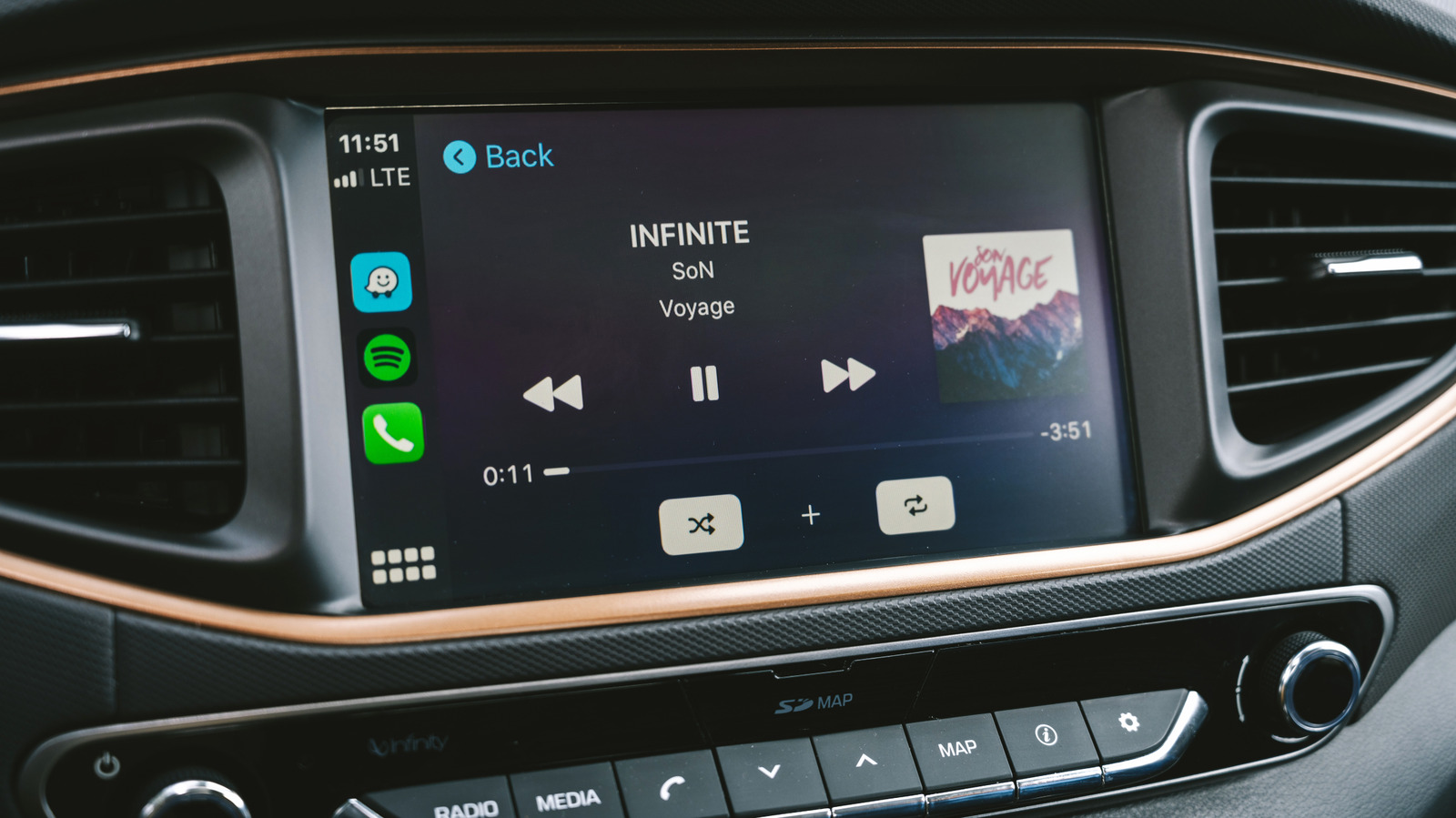
CarPlay is great for listening to music on the go, but a few tweaks will help it sound even better in your car.
A. Aleksandravicius/Shutterstock Apple CarPlay gives you an easy solution for playing your favorite music from Spotify or Apple Music in your vehicle. However, it isn't guaranteed to give you the best sound your car can produce. Your iPhone might feed the stereo a lower-quality stream than you expect, with settings that sound great through your headphones but awful through your car speakers.
There's no magic solution for this, given how much variance there is between car speakers. The quality of the original music will obviously play its part, but the way your iPhone connects to your car has an impact, too. Rather than upgrading your speaker system right away, you can try some straightforward changes to improve the audio quality when using Apple CarPlay.
Harry Howitt/Shutterstock Wireless CarPlay is the most convenient option for most people. You don't even have to get your iPhone out of your pocket for your car to connect and start playing your favorite songs. Unfortunately, it isn't the best option for those who demand the best music quality.
Take it from Apple: wired is best for your music. Apple's guidelines for Apple Music through CarPlay confirm that only a wired USB connection will allow you to play lossless audio. Lossless audio is compressed without throwing away any of the original audio data, meaning you're not losing detail. A wired connection means you can switch to lossless streams, as long as you have an active Apple Music subscription and have enabled this option.
Technically, it's all down to the codec. Apple uses LPCM for audio on wired CarPlay connections, but switches to AAC-LC when using wireless CarPlay. LPCM carries uncompressed digital audio, so a lossless ALAC track from Apple Music can be passed to your car without lossy compression. Wireless CarPlay has to encode the audio into AAC-LC first, using lossy compression to reduce the bitrate and discarding some of the original audio data in the process.
The end result is lower-quality audio, but that doesn't mean wireless CarPlay automatically sounds bad. Whether you hear the difference will depend on your car's sound system and your ears. The speakers and amp (if your car has one) have a huge influence here. Plus, other distractions, like road noise, are never going to provide the perfect environment for listening to music.
Hadrian/Shutterstock A wired connection can only preserve the quality it receives in the first place. When you're streaming from Apple Music or Spotify while driving, your mobile connection isn't going to be perfect. You're regularly shifting between cell towers and dipping in and out of cellular coverage. Drops in connection mean drops in quality: CarPlay can't counter that, even over USB.
This problem is easily fixed by downloading your regular playlists to your iPhone before you set off. Apple Music lets you choose your preferred quality setting for downloads, including lossless at 24-bit/48kHz. This, while using wired CarPlay, will give you the best possible sound quality over the platform. If you've downloaded your music at a lower quality before, Apple recommends deleting it from your phone and downloading it again to get the lossless version.
You can listen to lossless audio on other platforms too, including Spotify, which allows Premium subscribers to download lossless audio at 24-bit/44.1kHz using FLAC. Otherwise, Sp…