
Use a methodical approach to see what’s using the most space on your PC and easily clean it up.
Nwz/Shutterstock Add Engadget on Google: Preferred Source Google Discover There's so much competing for the space on your computer that it's easy to lose track of it all. Programs, photos, videos, games, downloads and your other items live alongside system data like temporary files and updates. That's not to mention duplicate files and other junk that serves no purpose.
When you need to clean up some space in Windows, it's easy to see what's using the most storage. With this laid out, you can create the most room with the least effort, only dipping into more advanced methods if you're really pressed for space. Don't go digging into folders at random; weeding out what's monopolizing your space gives you more breathing room.
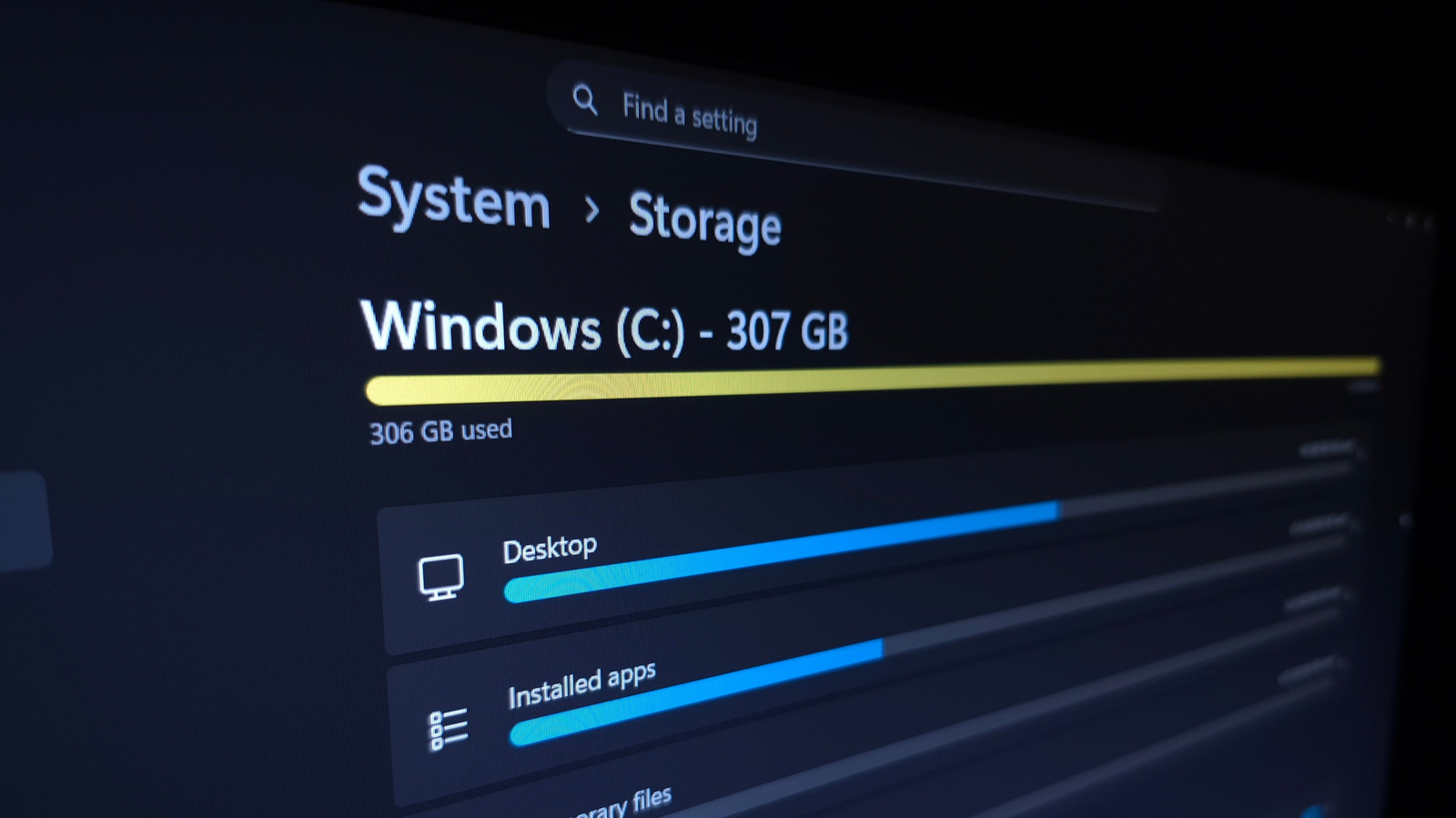
Let's begin with Windows' built-in storage management tool: press Win + I to open the Settings panel, then go to System > Storage . Here, you'll see the total space in use on your main disk, along with a breakdown of what's taking it. Select one of these categories to jump into the relevant place and manage it.
One of the biggest hogs is likely to be Installed apps ; clicking this brings you to the Settings > Apps > Installed apps page. Change the Sort by box to Size (Large to Small) to put the lowest-hanging fruit at the top. Under the three-dot (...) menu, hit Uninstall to remove anything you don't use anymore. If you have at least two drives, some programs (like games from the Microsoft Store) provide a Move option.
The Temporary Files category shows several checkboxes for items like Thumbnails that can be easy space-savers. Click Cleanup System Files to show more types of clutter. Be careful with Downloads and the Recycle Bin — while those spots can use lots of space, you might not want to delete them outright. It's best to open the Recycle Bin from your desktop and quickly check for anything you want to restore, since clearing the bin permanently deletes the files in it. Similarly, you might have items you want to save in your Downloads .
If you have multiple storage drives, back on the Storage page, expand the Advanced storage settings section and choose Storage used on other drives to see the same breakdown for the others.
Rokas Tenys/Shutterstock The System & reserved section, which may be hidden behind Show more categories , shows how much storage Windows features are using. While these should generally be your last resort to remove since disabling them removes important functionality, it's possible to reclaim their space.
If you don't use hibernation on your PC, you can disable it to remove the large hiberfil.sys file. Type "cmd" into the Start menu, right-click the Command Prompt entry, and choose Run as administrator . In the command window, type powercfg /hibernate off and hit Enter . If you ever want to use hibernation again, use powercfg /hibernate on .
System restore sends your PC "back in time" to reverse a bad update or unwanted change. Click Manage system restore to open its Control Panel window; there, click your System drive and choose Configure . If you're OK with having fewer restore points in case something goes wrong, drag the Max Usage slider down. Consider using Delete to erase all restore points for even more space in a pinch.
Sankai/Getty Images The Storage menu is a good start, but it's not perfect for checking individual files. Categories like Music and Videos (and Other , where Wind…